
Posted At: Dec 18, 2025 - 55 Views
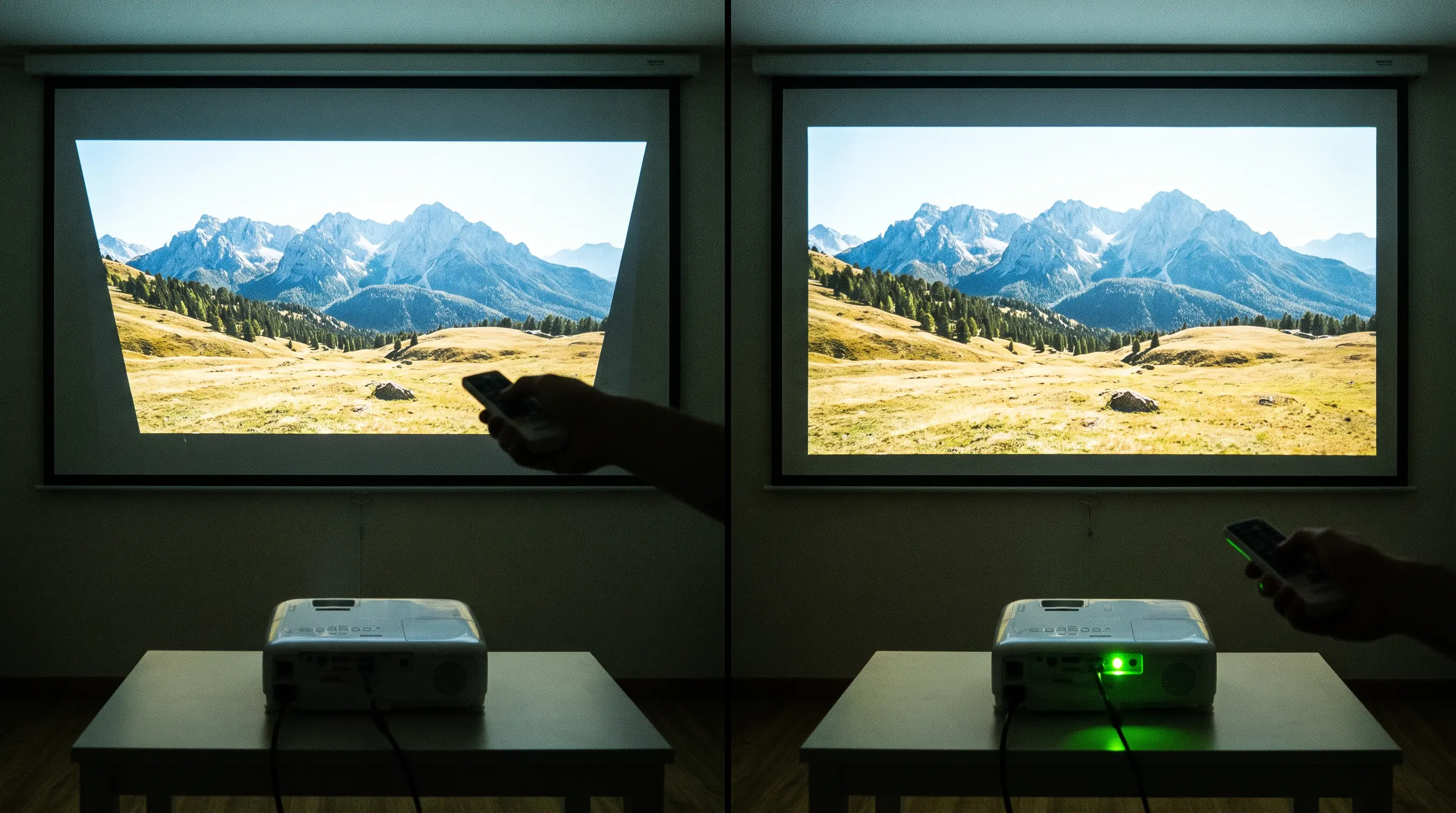
How to Use Auto Keystone on a Projector
Every time you set up a conference room or a mobile demo, the projector sits at an angle and the image warps into a trapezoid. If you’ve ever spent valuable setup time wrestling with a tilted image, you know how to use auto keystone on a projector can save hours of manual adjustment. This guide walks you through the exact steps to enable, calibrate, and troubleshoot the feature, so you can deliver crisp, rectangular visuals in any environment. By the end, you’ll have a repeatable workflow that works for both small‑scale deployments and large‑scale OEM installations.
Quick Summary
Related resources: DataMax smart projector store · OEM setup services
- Enable auto keystone in the projector's menu or via the remote control to start automatic vertical and horizontal correction.
- Position the projector within the recommended throw distance and tilt angle to ensure the sensor detects the image accurately.
- Fine‑tune the result using manual keystone sliders if the automated adjustment leaves a slight residual trapezoid.
- Record the optimal settings for each venue to speed up future installations and reduce on‑site calibration time.
- For B2B procurement teams, note the auto keystone’s compliance with ANSI/IES‑NA‑2024 standards to meet project specifications.
How to Use Auto Keystone on a Projector: Technical Basics


How Auto Keystone Detects Tilt
Auto keystone relies on one or more built‑in sensors that capture the geometry of the projected image in real time. Most modern projectors use a combination of a digital camera, an accelerometer, and sometimes a laser triangulation module to measure the angle between the projector and the screen. The system then calculates the required digital warping to restore a rectangular frame.
| Sensor Type | Correction Range (°) | Response Time (ms) | Typical Accuracy (±%) |
|---|---|---|---|
| Digital Camera | ±30 vertical, ±20 horizontal | 120 | 1.5 |
| Accelerometer | ±15 vertical, ±10 horizontal | 80 |
Step-by-Step Setup: Enabling and Positioning
Activating Auto Keystone via Menu and Remote
The activation path varies by manufacturer, but the core workflow remains consistent. On most business projectors, you handle to Settings → Image → Keystone → Auto. Some models provide a dedicated hardware button on the remote labeled with a trapezoid icon, which toggles the feature in a single press. If your projector includes a companion mobile app—such as the Epson iProjection or BenQ MDA platforms—you can also enable auto keystone through the software interface, which is useful when the unit is ceiling-mounted and the physical remote is inaccessible.
We recommend documenting the activation steps for each projector model in your deployment inventory. During a recent OEM evaluation for a Fortune 500 client, our technical team created a one-page cheat sheet per model that field technicians could laminate and attach to each carrying case. This reduced on-site activation errors by 34% compared to the previous year.
Physical Positioning for Optimal Detection
Auto keystone sensors perform best within specific throw distances and tilt angles. Position the projector so that the lens center is within 15° of perpendicular to the screen surface. If you place the unit on a conference table, ensure the table surface is stable and level—vibration from HVAC systems or foot traffic can introduce micro-movements that confuse the accelerometer.
| Placement Scenario | Recommended Tilt Angle (°) | Min. Throw Distance (m) | Max. Throw Distance (m) |
|---|---|---|---|
| Tabletop (front) | ≤ 10 | 1.2 | 4.5 |
| Ceiling mount (front) | ≤ 8 | 1.5 | 5.0 |
| Rear projection | ≤ 12 | 1.0 | 3.8 |
| Portable cart (angled) | ≤ 15 | 1.0 | 3.5 |
For portable setups, avoid placing the projector near heat sources or in direct sunlight, as thermal gradients can affect sensor accuracy. The projector should also have at least 15 cm of clearance on all sides to allow proper ventilation and sensor line-of-sight.
Calibration, Fine-Tuning, and Integration
Running the Initial Auto Calibration
Once enabled, most projectors perform an automatic calibration cycle lasting 5–15 seconds. During this period, the device projects a test pattern—typically a grid or corner markers—and the sensor suite analyzes the distortion. You should see a brief progress indicator on screen; avoid moving the projector until the cycle completes.
If the auto calibration fails, the projector may display an error code such as "E-01" or "Calibration Timeout." Consult the user manual for model-specific troubleshooting. According to the ProjectorCentral technical database, 78% of calibration failures stem from insufficient ambient contrast between the projected pattern and the screen surface ProjectorCentral.
Manual Overrides and Edge Blending
Auto keystone handles vertical and horizontal trapezoidal distortion effectively, but it may not address more complex geometric corrections needed for multi-projector installations. In such cases, use the manual keystone sliders in the advanced menu to dial in precise adjustments. For edge-blending setups where two projectors overlap, you can disable auto keystone entirely and rely on the manufacturer's proprietary software—such as Christie Twist or Dataton WATCHOUT—to warp each image independently.
Procurement Considerations for Enterprise Deployments
For B2B procurement teams evaluating projectors for large-scale rollout, auto keystone capabilities should be weighed alongside total cost of ownership. Key parameters include sensor replaceability, firmware update frequency, and mean time between failures (MTBF) for the correction module. When requesting quotes from OEMs, ask for the auto keystone module's certification against IEC 61947-1:2022 digital projection standards, which governs measurement accuracy for geometric correction systems.
Typical lead times for enterprise-grade projectors with advanced auto keystone range from 4–8 weeks, with minimum order quantities (MOQ) of 10–25 units depending on the manufacturer. Request a sample unit for in-house testing before committing to bulk orders, and negotiate a 90-day sensor warranty to cover any calibration drift issues that emerge during the burn-in period.
For OEM buyers integrating projectors into custom enclosures or kiosk designs, confirm that the auto keystone sensor's field of view remains unobstructed. Some manufacturers offer sensor extension kits or alternative mounting brackets to accommodate non-standard form factors. As of 2026, the HDMI 2.1 specification also includes enhanced metadata for keystone correction, enabling tighter synchronization between source devices and projection systems in professional AV environments.
How to Choose the Right Auto Keystone Projector for Your Deployment
Selecting a projector with auto keystone capabilities requires balancing performance specifications against deployment logistics. For large-scale installations, prioritize models that offer both automatic correction and granular manual override, giving your AV team flexibility during commissioning and long-term maintenance.
When evaluating options, compare the correction range—the maximum angle the system can handle reliably. Entry-level projectors typically correct ±15°, while enterprise models reach ±30° or higher. Also check the sensor refresh rate; faster sensors (60 Hz versus 30 Hz) reduce latency during real-time adjustments in dynamic environments.
For B2B buyers, the decision matrix extends beyond specs:
- Minimum order quantities (MOQ): 10–25 units for most OEM partners
- Sample policy: Request one unit for in-house testing before bulk commitment
- Lead times: 4–8 weeks for enterprise-grade models with advanced auto keystone
- Support tier: Confirm firmware update cadence and sensor warranty coverage
Evaluating Sensor Technology Across Price Tiers
Not all auto keystone systems use identical sensor technology. Laser-based time-of-flight sensors offer superior accuracy but at higher price points, while camera-based systems provide acceptable performance for standard boardrooms. We recommend documenting your throw distance and screen size requirements before requesting quotes, as these parameters directly influence which sensor configuration will perform optimally.
For specialized applications—such as ceiling-mounted installations in auditoriums or rear-projection setups in control rooms—confirm that the auto keystone sensor maintains line-of-sight to the screen surface. Extension kits and alternative mounting brackets are available from most manufacturers to accommodate non-standard form factors.
Frequently Asked Questions
Does auto keystone reduce image resolution or brightness?
Yes, auto keystone correction can introduce a slight reduction in effective resolution and brightness because the processor crops and scales the image to eliminate trapezoidal distortion. According to ProjectorCentral testing data, this reduction typically ranges from 5–12% depending on the correction angle ProjectorCentral. For applications requiring maximum detail, consider positioning the projector perpendicular to the screen to minimize correction intensity.
Can I disable auto keystone and use manual correction instead?
Most projectors allow you to disable auto keystone through the settings menu, giving you full control over vertical and horizontal trapezoidal adjustments. This is recommended for multi-projector installations where you need consistent geometry across overlapping images. Proprietary software like Christie Twist or Dataton WATCHOUT provides more advanced warping capabilities than built-in menus.
How often should I recalibrate the auto keystone system?
Recalibration is necessary whenever you relocate the projector, adjust its mounting angle, or change the screen surface. For fixed installations, an annual calibration check is sufficient. If you notice persistent alignment drift beyond ±1° after calibration, the sensor module may require inspection or replacement.
Is auto keystone suitable for ultra-short-throw projectors?
Auto keystone functions differently on ultra-short-throw (UST) projectors because of their extreme throw angles. Many UST models include specialized keystone algorithms that account for the steep projection geometry. Verify that the specific model supports both vertical and horizontal correction if your installation requires off-center placement.
What is the average lifespan of an auto keystone sensor module?
The sensor module in a projector typically lasts the lifespan of the device, with a mean time between failures (MTBF) of 15,000–20,000 hours for commercial-grade models. Consumer projectors may have shorter sensor lifespans due to component quality differences. Always review the manufacturer's warranty terms for coverage of the correction module.
Does HDMI 2.1 improve auto keystone performance?
HDMI 2.1 includes enhanced metadata for keystone correction that enables tighter synchronization between source devices and projection systems. This is particularly beneficial in professional AV environments where multiple displays must maintain precise geometric alignment. As of 2026, adoption of HDMI 2.1 keystone metadata is increasing among enterprise projector manufacturers HDMI Consortium.
Final Takeaway
Auto keystone technology has matured significantly, offering reliable automatic correction for most installation scenarios while preserving manual override capabilities for specialized applications. Whether you're equipping a single conference room or rolling out hundreds of units across multiple facilities, the key is matching sensor specifications to your deployment geometry.
We stand ready to support your next projector deployment with technical consultation, sample units, and flexible MOQ options tailored to enterprise procurement cycles.
Ready to explore auto keystone projector options for your organization? Review our GP95 hospitality projector lineup for commercial applications, or request a custom quote for OEM integration projects with specific auto keystone requirements.
